I/O Checkup - Free Online Peripheral Testing Tools

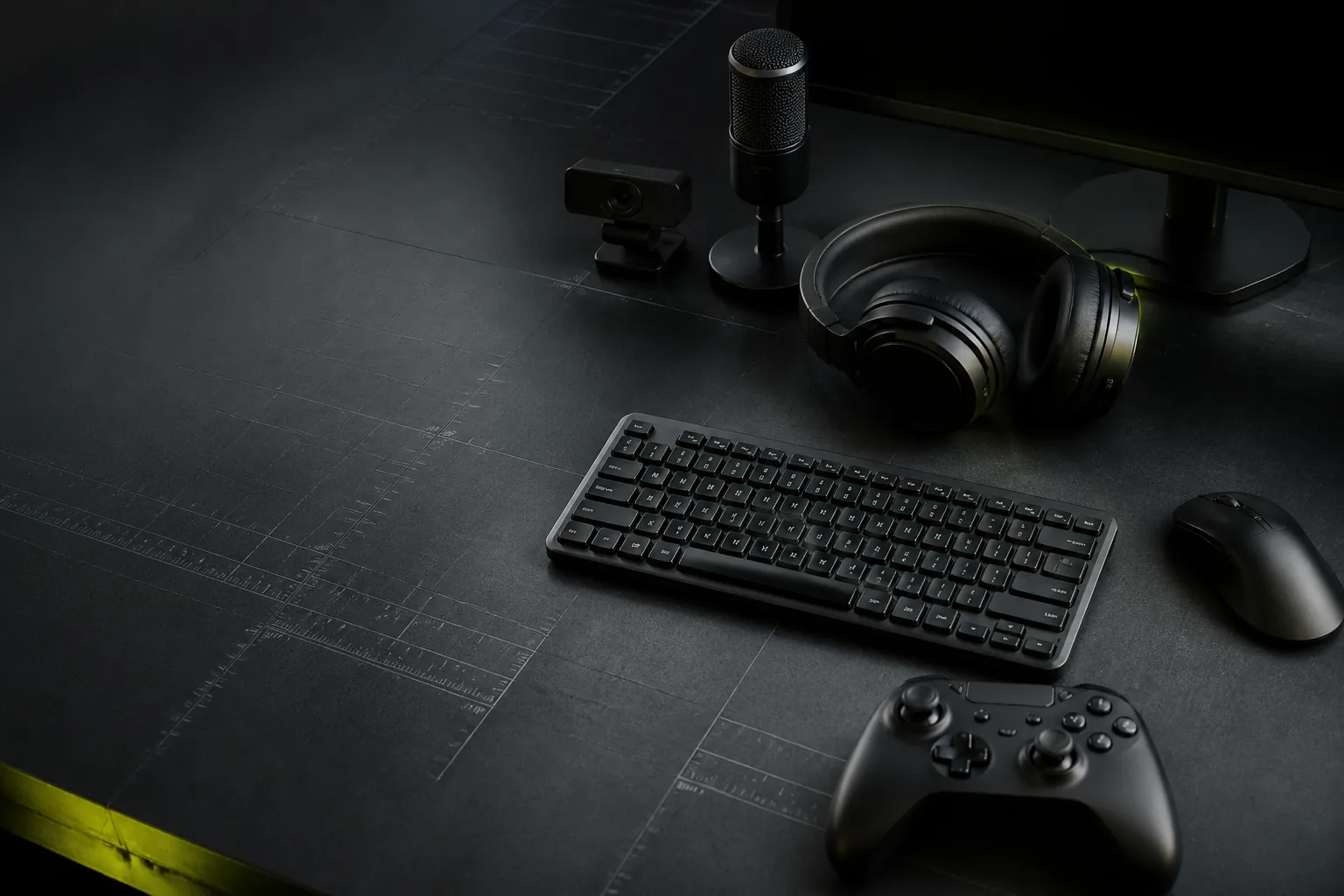
Run free browser-based tests for keyboards, mice, touchscreens, monitors, gamepads, microphones, webcams, and speakers.

I/O Checkup - Free Online Peripheral Testing Tools focuses on Peripheral testing tools: I/O Checkup is the starting point for browser-based hardware diagnostics across desktop peripherals, mobile input surfaces, and everyday audio or video devices.

What this page checks

  • Keyboard, mouse, touch, display, gamepad, microphone, webcam, and speaker diagnostics
  • Browser-based checks with no software install
  • Device-specific quick tests for desktop and mobile users
  • Local-first hardware testing with clear results
  • I/O Checkup - Free Online Peripheral Testing Tools result interpretation

How to use I/O Checkup - Free Online Peripheral Testing Tools

  1. Open I/O Checkup - Free Online Peripheral Testing Tools on the same browser and device you want to diagnose.
  2. Most tools start instantly; camera, microphone, gamepad, pointer lock, and audio tools only ask for browser permissions when needed.
  3. Run the visible peripheral testing tools controls and watch the live result area update before judging the hardware.
  4. Repeat the test once or twice, then compare related I/O Checkup tools if the home behavior looks inconsistent.

How to read the result

I/O Checkup - Free Online Peripheral Testing Tools is most useful when you read the result as a practical browser diagnostic. I/O Checkup is built for fast browser diagnostics, comparison, and troubleshooting, not laboratory certification. A repeated pattern across multiple runs is more meaningful than one isolated spike, missed event, or visual artifact.

Privacy and permissions

Most tools start instantly; camera, microphone, gamepad, pointer lock, and audio tools only ask for browser permissions when needed. Tests are designed to run locally in the browser, with permissions controlled by the browser.

I/O Checkup - Free Online Peripheral Testing Tools FAQ

When should I use I/O Checkup - Free Online Peripheral Testing Tools?

I/O Checkup is the starting point for browser-based hardware diagnostics across desktop peripherals, mobile input surfaces, and everyday audio or video devices. It is designed for people testing everyday hardware on computers, phones, and tablets.

What result should I watch first?

The homepage helps visitors choose the right diagnostic path before they open a dedicated keyboard, mouse, touchscreen, display, gamepad, microphone, webcam, or speaker tool.

How do I avoid a misleading homepage choice?

Run the visible controls with the tab focused and repeat the same action before changing settings. If a visitor opens the wrong category, the page may still be useful, but the best result comes from matching the tool to the hardware symptom.

Is this test data uploaded?

No. The page uses local browser events or hardware APIs and does not need uploaded raw diagnostic data.

Which related test should I open next?

Use related I/O Checkup pages to confirm the symptom from another angle.

What I/O Checkup should solve first

I/O Checkup is the starting point for browser-based hardware diagnostics across desktop peripherals, mobile input surfaces, and everyday audio or video devices.

Run free browser-based tests for keyboards, mice, touchscreens, monitors, gamepads, microphones, webcams, and speakers. The audience for this page is people testing everyday hardware on computers, phones, and tablets, so the copy focuses on the actual symptom rather than presenting the tool as another generic online checker.

How visitors find the right test

The homepage helps visitors choose the right diagnostic path before they open a dedicated keyboard, mouse, touchscreen, display, gamepad, microphone, webcam, or speaker tool.

The practical checklist is Keyboard, mouse, touch, display, gamepad, microphone, webcam, and speaker diagnostics, Browser-based checks with no software install, Device-specific quick tests for desktop and mobile users, Local-first hardware testing with clear results, I/O Checkup - Free Online Peripheral Testing Tools result interpretation. These are browser-visible signals, which means the page reports what the web app can genuinely observe instead of pretending to inspect hidden firmware or factory calibration data.

Peripheral testing tools in real use

A strong hardware-testing homepage should behave like a switchboard: it should get a keyboard user to key registration, a gamer to mouse or controller checks, a phone user to touch diagnostics, and a video-call user to camera, microphone, and speaker tools without making them read an essay first.

This is also where broad search intent belongs. Someone searching for online peripheral testing tools may not know whether the problem is input, display, audio, or video yet, so the homepage should introduce the device categories and then hand the deeper explanation to the individual tool pages.

Best path through the homepage

Run the visible controls with the tab focused and repeat the same action before changing settings.

A fair pass keeps the same browser, device position, lighting, surface, volume, grip, or input route until the first result is complete. Changing several variables at once makes the result harder to trust.

When the homepage is doing its job

A good visit starts with the correct device profile and then moves into a tool page where the real test can run with enough space, controls, and result context.

If a visitor opens the wrong category, the page may still be useful, but the best result comes from matching the tool to the hardware symptom. The key is repetition: a symptom that appears in the same place, with the same button, on the same key, or at the same stage of the test is more meaningful than one isolated event.

Homepage content to avoid

If a visitor opens the wrong category, the page may still be useful, but the best result comes from matching the tool to the hardware symptom.

Accuracy limits still matter: I/O Checkup is built for fast browser diagnostics, comparison, and troubleshooting, not laboratory certification. Treat the page as a strong practical diagnostic rather than a laboratory certificate.

Peripheral testing tools result boundaries

Do not overread a single pass. Peripheral testing tools becomes useful when the same behavior repeats after the page is focused, the device is prepared the same way, and the surrounding conditions stay stable.

The practical decision is not simply pass or fail. The question is whether the evidence points to hardware wear, browser permissions, operating-system settings, environmental conditions, or user technique. Repeat once after closing noisy apps, returning settings to normal, and removing obvious distractions before deciding. That distinction is what makes the next diagnostic step clearer.

Where users should go next

Use related I/O Checkup pages to confirm the symptom from another angle.

Useful follow-up pages for this path are Keyboard Tester, Mouse Click Speed Test, Touchscreen Test, Dead Pixel Test, Microphone Test, Webcam Preview Test. These links are chosen because they split nearby symptoms into narrower checks.

Privacy promise on the homepage

Most tools start instantly; camera, microphone, gamepad, pointer lock, and audio tools only ask for browser permissions when needed.

I/O Checkup keeps the diagnostic flow local-first. Permission prompts, when they appear, come from the browser API needed for that exact hardware check and remain under the user’s control.